Scheduling
Sharing booking links
Get the right link in front of the right prospect — and let Cartoply handle the routing.
Your booking links
Every Cartoply account has two types of booking pages:
- Personal page —
cartoply.com/[username]. Lists your active personal event types (on the free plan, just the oldest one). No territory routing — the prospect books directly with you. - Org page — available after an org admin creates at least one org event type. The prospect picks a meeting type, and Cartoply routes them to a rep by territory, round-robin, or their own choice, depending on how the event type is configured.
Find your personal booking link on the Profile page under Your public booking page. Org booking links are shown in the org dashboard.
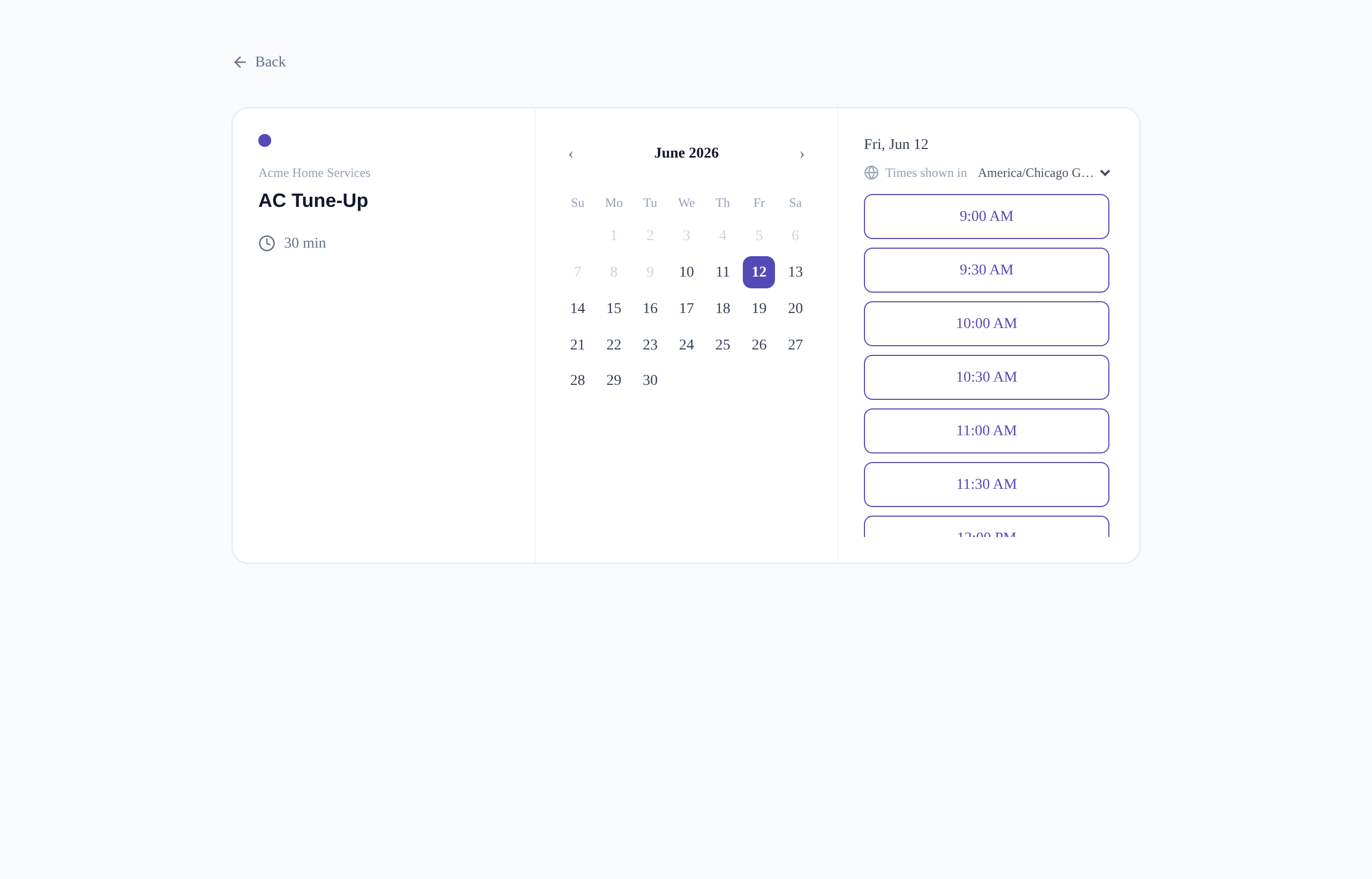
What the prospect sees
When someone visits your booking page, they go through these steps:
- Select a meeting type — they choose from your active event types.
- Enter their address — only on org event types that both collect the guest's address and have territory matching turned on. They pick a real address from autocomplete suggestions (a bare ZIP won't do), and Cartoply finds the reps who cover it. Other event types skip straight to the times, and collect the address later in the details form if they need one.
- Pick a time — on a calendar event type, they choose a date and then a time from that day. On an instant-booking event type there's no calendar at all: they see a flat, day-grouped list of the next available times. Either way only genuinely open slots appear, within the event type's booking window and scheduling limits, and times display in the prospect's timezone with a selector to switch.
- Enter their details — name, email, phone, and any booking questions you've configured.
- Pay (for priced events in an organization with payment access) — their card is authorized via Stripe or PayPal, then charged once the slot is secured.
- Confirmation — normally a confirmation screen plus a confirmation email. Two variations: if the event type holds bookings for approval they get a Request received screen instead, telling them the time isn't reserved yet; and if you've set an after-booking redirect, they're sent to your page rather than seeing Cartoply's screen.
Sharing with prospects
Common places to share your booking link:
- Email signature — add your personal or org link so every email becomes a booking opportunity.
- Cold outreach — include the link in prospecting emails or LinkedIn messages.
- Website — embed the org link on a "Book a demo" or "Schedule a visit" page.
- QR code — generate a QR code from your booking URL for print materials, trade shows, or vehicle wraps.
Share-ready link previews
You don't need to design anything to make your link look good. When a Cartoply booking link is shared on X, LinkedIn, Facebook, or in iMessage, it unfurls into a rich social card automatically — your photo, your name, and the event type with its duration, on Cartoply-branded artwork. Every public page gets one: your personal page, direct event type links, and org booking pages.
Personal pages use your profile photo. Org pages use your organization's logo when one has been uploaded in org settings.
Cartoply branding on booking pages
Booking pages on the free plan show a small "Powered by Cartoply" badge. Subscribing removes it automatically — there's no setting to configure. It applies to both personal pages and org pages, and accounts granted free access by an admin are treated as paid.
The badge tracks a paid plan specifically, not the trial — it stays visible during your 14-day trial and disappears once you subscribe.
Direct event type links
Every event type has its own URL: cartoply.com/[username]/[event-slug] for personal types, or the equivalent org path for org types.
Use direct links when you want to send a prospect straight to a specific meeting type without making them choose. For example, a cold email might link directly to your "30-Minute Discovery Call" page.
Copying a booking link
On the My Event Types page (and the org workspace's Event Types page), each event type card has a Copy link button. Clicking it copies the direct URL for that event type to your clipboard — ready to paste into an email, message, or anywhere else.
Embedding your booking page
You can embed any Cartoply booking page directly on your own website. Each event type card has an Embed button that opens a code panel with two options:
- Popup — adds a floating “Book Now” button to the bottom-right corner of your page. Clicking it opens a modal overlay with the booking flow inside. Visitors can close it by pressing Escape or clicking outside the modal.
- Inline (iframe) — inserts a full booking page directly into your page content. Best for a dedicated “Book a meeting” section or landing page.
Copy the snippet for the mode you want and paste it into your website's HTML. No other dependencies are required — both snippets are self-contained. Paste the inline snippet whole: it's an <iframe> followed by a small <script> that sizes it, and the two belong together.
Embedding doesn't cost you your ad attribution, either: booking conversions fire automatically in your own GA4, Google Tag Manager, and Meta Pixel, and the visitor's UTM parameters and ad click IDs are saved on the booking. See Conversion tracking & attribution.
The popup snippet supports optional attributes to customize its appearance:
data-text— label on the floating button (default:Book Now).data-color— button background color as a hex value (default: Cartoply brand violet).data-mode— set toinlineto switch to iframe mode instead.
How an embedded page differs
An embedded booking page drops its own page chrome so it sits inside your layout rather than looking like a second page pasted into the first. It renders with a transparent background instead of your org background color, without outer padding, and only as tall as its content — your container supplies the framing. The “Back” links between steps are hidden too.
Style the container, not the frame: give the surrounding element the background, padding, border radius and max-width you want.
The frame resizes itself
An iframe can't measure its own content, so Cartoply tells your page how tall it needs to be. The booking page reports its height whenever the content changes — moving from the details form to the calendar, loading times, showing a validation error — and the snippet resizes the frame to match.
This matters because there is no single correct height: the details step and the calendar step differ by hundreds of pixels, so any fixed value leaves dead space under one or a scrollbar inside the other. The height in the snippet is only a starting value used before the first measurement arrives.
If your CMS rewrites the snippet
Rich-text editors in some CMSs modify pasted HTML on save. Two things to check after pasting:
- The script survived. Some editors strip
<script>tags entirely. If yours does, the frame still works but stays at its starting height with an inner scrollbar. Move just the script into a footer/custom-code area for that page and leave the<iframe>in the editor — they don't have to be adjacent. - The width. HubSpot's rich text editor rewrites
width="100%"to a fixed pixel value every time the field is saved, which overflows narrow screens. You don't need to fix this — the snippet's script reasserts full width at runtime — but don't be alarmed to see a pixel number in the markup, and don't bother editing it back. It will be rewritten again on the next save.
Copy the snippet fresh from the Embed panel rather than reusing an old one. Snippets copied before September 2026 don't contain the resize script.
After a booking completes inside an embed
When a visitor finishes booking inside an embed, the confirmation (or your custom after-booking redirect, if configured) appears inside the embed itself — your surrounding page is never navigated away. If you use a redirect, make sure the target page allows being shown in an iframe.
For deeper integration, Cartoply posts a browser message to your page when a booking completes: { type: "cartoply:booking-confirmed", event, start, requested }. Listen for it with window.addEventListener("message", …) to close the popup, show your own confirmation, or fire analytics. The resize messages use the same channel with { type: "cartoply:height", height }, so check type before acting on a message.
If you write your own listener, verify event.origin before trusting a message — any page can post to yours. Note that cartoply.com redirects to www.cartoply.com, so compare against the origin the frame actually loaded, not the URL you typed.
When no territory matches
On org booking pages, if a prospect enters a location that doesn't fall within any rep's territory, they'll see a message explaining that no coverage is available in their area. This is intentional — it prevents leads from booking with a rep who doesn't cover their area.
If you're seeing too many "no coverage" messages, review your territory map and expand coverage where needed. See Territory management.
For what you can do from these pages — searching by guest name, phone or address, marking no-shows, reassigning, and handling refunds — see Managing bookings.
Confirmation emails
Cartoply sends an automated confirmation email to the prospect when a booking is confirmed. The email includes the meeting details and time, the answers to any booking questions, and any location information you provided in the event type.
If the event type uses the Google Meet or Teams location option, the email also carries a Join link created for that specific booking, and the same link appears on the confirmation screen the guest sees straight after booking.
Guest self-service cancel & reschedule
The confirmation email contains secure links the prospect can use to cancel or reschedule on their own — no back-and-forth required. These links respect the event type's cancellation cutoff (default 24 hours before the appointment): inside the cutoff, the guest is asked to contact you instead. Cancelling or rescheduling automatically updates the synced calendar event and notifies you by email.
The cutoff doesn't apply to withdrawing a booking that's still awaiting your approval — it never held a slot, so a guest can pull it back at any point.
If the guest cancels a paid booking, the payment isn't refunded automatically — the booking is flagged Refund due on your Bookings page and you choose whether to refund it or deny the refund with a reason (which is emailed to the guest). See Refunds.